Chapter 14
Settings, backup & security
Profile, preferences, encrypted backups and installer verification.
3 min read, 7 sections
On this page
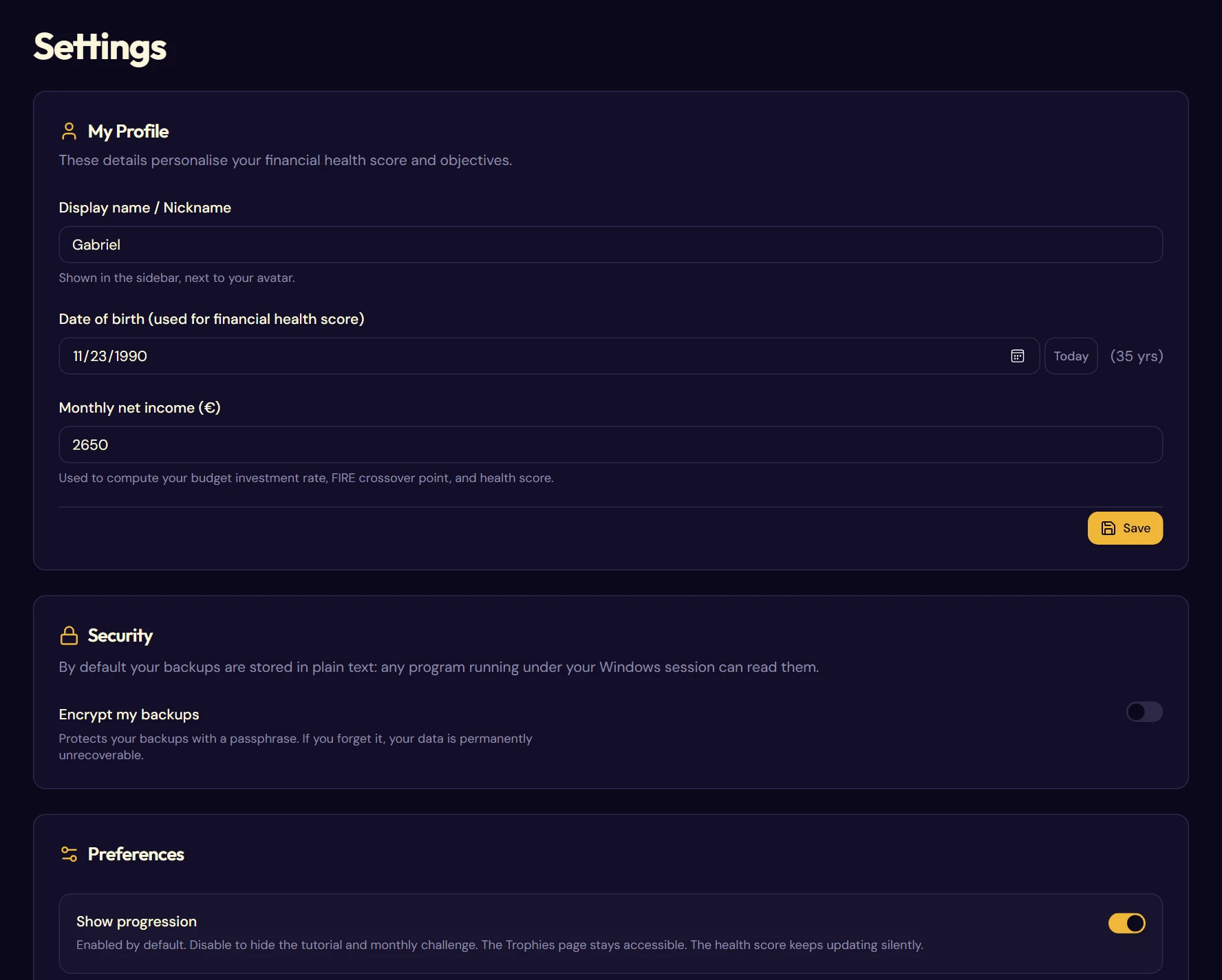
You get there through File > Settings.
14.1Your profile
| Field | What it is for |
|---|---|
| Display name / Nickname | The name shown in the sidebar, next to your avatar. Purely decorative. |
| Date of birth | Personalizes the financial health score: the expected resilience and the bonuses depend on your investment horizon. |
| Monthly net income | Used for the budget investment rate, the Crossover Point and the health score. |
14.2Preferences
- Show progression: hides the tutorial and the monthly challenge. The Trophies page stays accessible and the health score keeps being calculated.
- Envelope colors: switches between the Pastel palette and the Classic palette, live. The colors you have customized envelope by envelope are kept.
14.3Where your data lives
| Content | Location |
|---|---|
| Automatic backups | %APPDATA%\app.fructificare.desktop\save\ |
| Imported PDF documents | %APPDATA%\app.fructificare.desktop\documents imp\ |
Fructificare saves on its own, a few seconds after each change, and keeps the ten most recent backups. The oldest one is deleted as new ones come in. The Auto-save card in the Settings lists these files and lets you restore one with a click.
Exporting and importing
From the File menu: Export a backup… writes a JSON file, named fructificare-save-YYYY-MM-DD.json by default, to the location of your choice, and Import a backup… imports it. Recent files… remembers the locations already used.
14.4Encrypting your backups
By default, your backups are JSON files in plain text: any program running under your Windows session can open them and read your wealth, your deposits and your goals. You can encrypt your backups to prevent this.
Turning it on
- Settings → Security → Encrypt my backups.
- Choose a passphrase of at least 12 characters, then confirm.
- The current backup is rewritten encrypted, and the backups still in plain text are deleted.
Each time Fructificare opens, a window will ask for your passphrase to unlock reading the backup.
Your older backups
They remain perfectly usable. A plain-text file imports normally, without asking you anything, and it is automatically saved again, encrypted. The conversion therefore happens by itself, through a simple import.
Only the automatic backups in the application folder are erased when encryption is turned on. Your exports stored elsewhere (Desktop, USB stick, external drive) are not touched, and stay in plain text until you import them again.
How it works
Your passphrase is stored nowhere. It is turned into a 256-bit key by a deliberately slow function (PBKDF2-SHA256, 600,000 iterations), which then encrypts the file with AES-256-GCM. The “GCM” part adds an internal signature: a file modified by even a single bit is refused instead of producing wrong figures.
Its strength depends almost entirely on your passphrase.
| Your passphrase | Time to crack (1 graphics card) |
|---|---|
| A password already seen in a leak | A few minutes |
| A word followed by digits: “Fructificare2026!” | About a day |
| A made-up, “original” sentence | A few years |
| Four words picked at random | Several thousand years |
| Five words picked at random | Out of reach |
14.5Activity log
An exportable diagnostic text file that traces the application's operations: loads, imports, calibrations, errors. Useful for understanding unexpected behavior or to go with a bug report.
14.6Resetting everything
It permanently erases your envelopes, transactions, calibrations, movement templates and recurring movements, simulations, budget and documents: the confirmation window lists them explicitly.
Your progress (trophies, quests) and your preferences are kept.
14.7Checking the application you install
This check is optional. Published releases of Fructificare are not signed with a code-signing certificate: Windows shows a SmartScreen warning the first time you run it, and nothing distinguishes, at a glance, the genuine installer from a modified copy. If you want to make sure, the file's fingerprint lets you do so.
Each release is published with a SHA256SUMS.txt file: the fingerprint of the binaries, 64 characters that change completely if a single byte of the file changes. To check it, in PowerShell:
Get-FileHash .\Fructificare_x64-setup.exe -Algorithm SHA256
Compare the result with the matching line of the published file. If they differ, do not run the file.