Chapter 9
The calendar and the budget
Due dates, reminders and the monthly budget in one place.
5 min read, 5 sections
On this page
The calendar brings together your past and upcoming movements, your reminders, your tax deadlines, your contract anniversaries...
Three tabs complete it below: Reminders, Scheduled movements and Monthly budget.
9.1The monthly grid
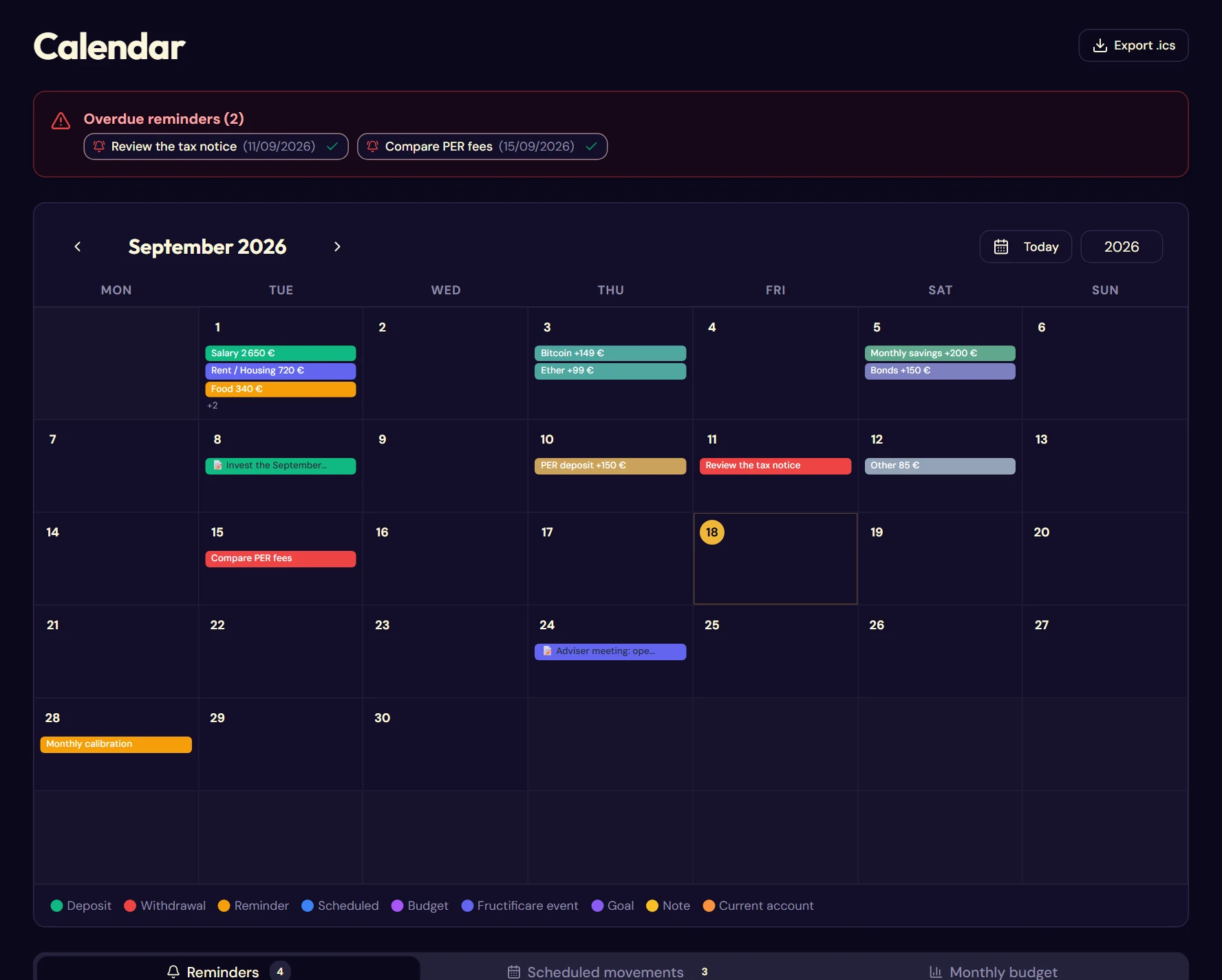
The arrows on either side of the month move you from one month to the next. The Today button takes you back to the current month, and the field on the right lets you jump straight to a year.
Each day shows up to three event dots. Beyond that, a “+n” counter shows what is not displayed. Click the day to see everything.
The legend
| Color | Event |
|---|---|
| Green | Deposit |
| Red | Withdrawal |
| Amber | Reminder |
| Blue | Scheduled movement |
| Purple | Budget entry |
| Indigo | Fructificare event (review, fee review…) |
| Light purple | Goal due date |
| Yellow | Personal note |
| Orange | Current account movement |
The day window
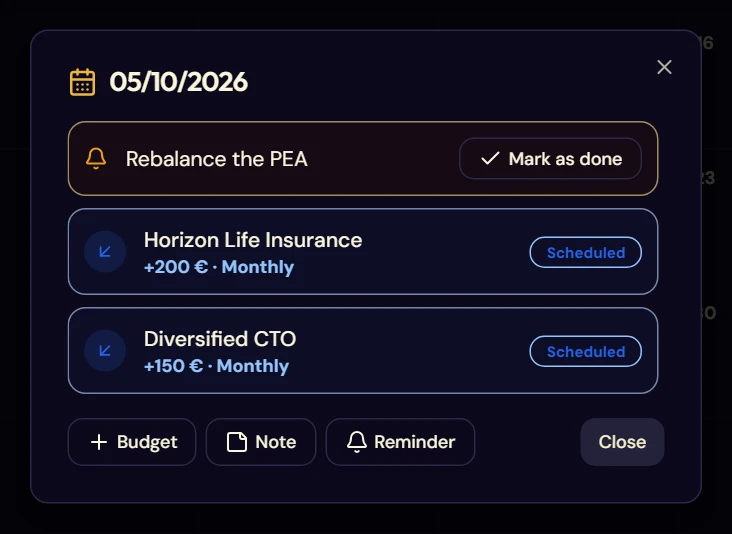
A click on a cell opens the details of the day: each event is listed with its amount, its breakdown by asset where relevant, and its actions (mark a reminder as done, apply a scheduled movement).
At the bottom of the window, three buttons add an item on that date: Budget opens the entry of a budget item (§ 9.5), Note a calendar note, and Reminder a reminder (§ 9.3).
Calendar notes
A free note attached to a date, in one of eight available colors. It is not used in any calculation: it is a memo, to remember the context of a decision: “switch after the crash”, “bonus received”.
Exporting to your calendar
The Export .ics button produces a standard calendar file, which you can import into Outlook, Google Calendar or Apple Calendar.
9.2Events generated automatically in the calendar
| Event | When | Why |
|---|---|---|
| Monthly calibration | Every month | Record the value of your accounts (chapter 6) |
| Monthly challenge: 3 days left | Three days before the end of the month | Complete the month's mission (§ 13.5) |
| PEA: 5 years | On the contract anniversary | Income tax exemption acquired |
| Life insurance: 8 years | On the contract anniversary | Tax allowance acquired |
| Quarterly review | Every three months | Take stock of the trajectory |
| Annual review | 1 January | Review goals and performance |
| Fee review | 15 January and 15 July | Check what your contracts cost |
| Tax deadlines | In spring | Prepare and then file your tax return |
PEA and life insurance contract anniversaries are only created if you have filled in the start date of the envelope concerned (§ 4.3).
9.3Reminders tab
Your personal reminders, alongside those Fructificare generates (§ 9.2). At the top of the list, the monthly challenge and the current month's due dates (calibration, review, tax) remind you of what lies ahead.
Adding a reminder
- Click Add reminder.
- Type the label: for example “Check my PEA”, “Record the values”.
- Set the date.
- Choose the recurrence: none, monthly or yearly.
- Confirm with Save.
A reminder can be edited, marked as done or deleted from the list.
Overdue reminders
A red banner appears at the top of the page as soon as a reminder has passed its date without being marked as done. Each reminder is listed with its date and a tick to mark it as done, without leaving the page.

9.4Scheduled movements tab
A view of your active regular movements from the calendar: envelope, amount, recurrence, start date and note. The Manage button, like the pencil on each row, opens the full recurring movements panel (chapter 8), where series are created, edited and stopped.
9.5Monthly budget tab
The investment rate
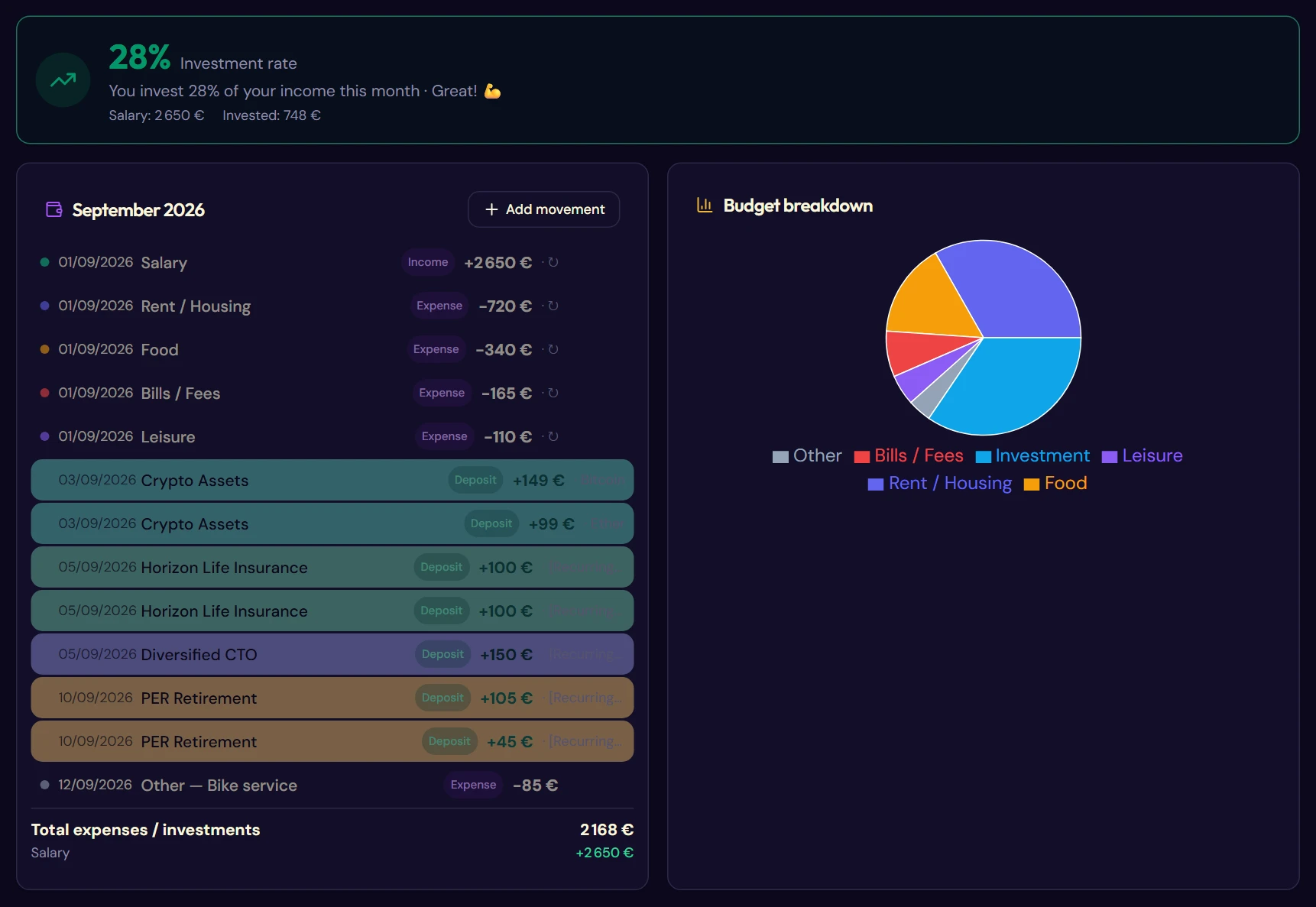
You will find the share of this month's salary actually invested, as a percentage. The assessment below is given for information only and is not investment advice. The share invested depends on each person's situation and should be tailored to it.
| Rate | Assessment |
|---|---|
| 30% and above | Excellent! 🏆 |
| 20 to 29% | Great! 💪 |
| 10 to 19% | Good! 👍 |
| Below 10% | Keep it up! 🌱 |
The calculation assumes that an entry in the Salary category exists for the month. The salary can also be entered in the Settings: it is then used as the basis when the month contains no “Salary” entry.

The month's movement list
All the month's flows, whatever their origin: budget entries, envelope transactions, recurring occurrences, current account expenses. A coloured dot shows the source of each row. The movements recorded on investment envelopes are imported here automatically, but remember to add your recurring living expenses (rent, transport, food, subscriptions, etc.).
Adding a budget movement
This is where you enter everyday expenses and income that do not concern any investment envelope: rent, a subscription, a salary. They are attached to the current account, which is not part of any investment statistics.
- Click Add movement, or Budget from a day window (§ 9.1).
- Choose the category among the seven offered.
- If you chose Other, enter a custom label.
- Enter the amount and the date.
- Choose a recurrence if needed: none, weekly, monthly, quarterly or yearly. A recurring entry is carried over automatically to the following periods.
- Confirm with Expense or Income depending on whether money goes out or comes in.
The seven categories:
- Salary: your income; it is the basis of the investment rate;
- Rent / Housing, Food, Bills / Fees: your fixed expenses;
- Leisure: your discretionary expenses;
- Investment: what you put aside;
- Other: with a free label.
A second History tab lists your past budget entries. It only shows budget entries: your envelope movements stay on their own page.
The breakdown pie chart
The breakdown of the month's expenses by category.