Chapter 6
Calibrating your envelopes
Enter the actual value of your accounts, as a total or position by position.
4 min read, 5 sections
On this page
6.1Why calibrate
Fructificare connects to no bank. You therefore need to calibrate your envelopes yourself. It does not take long, and it is recommended to do it at least once a month.
What calibration makes possible:
- calculating the current total value of your portfolio and its gain (§ 4.4);
- drawing the evolution curves (§ 4.5, § 5.6), the annualized returns and the annual bar charts (§ 4.9, § 5.7);
- estimating the gains in the tax report (§ 11.2);
- calculating the financial health score (§ 13.2);
- setting the avatar, which follows your real capital (§ 13.1);
- showing the “real value” view of the allocation pie chart (§ 4.6).
How often?
Once a month is enough, and it is the pace Fructificare suggests. The Calibrate my envelopes button on the dashboard turns amber and blinks as soon as an envelope has never been calibrated, or its last calibration is more than thirty days old.
A “Monthly calibration” reminder also appears in your calendar (§ 9.2).
6.2Entering a calibration
Open the window from the dashboard, Calibrate my envelopes button, to handle all your envelopes at once, or from an envelope page to calibrate just one.
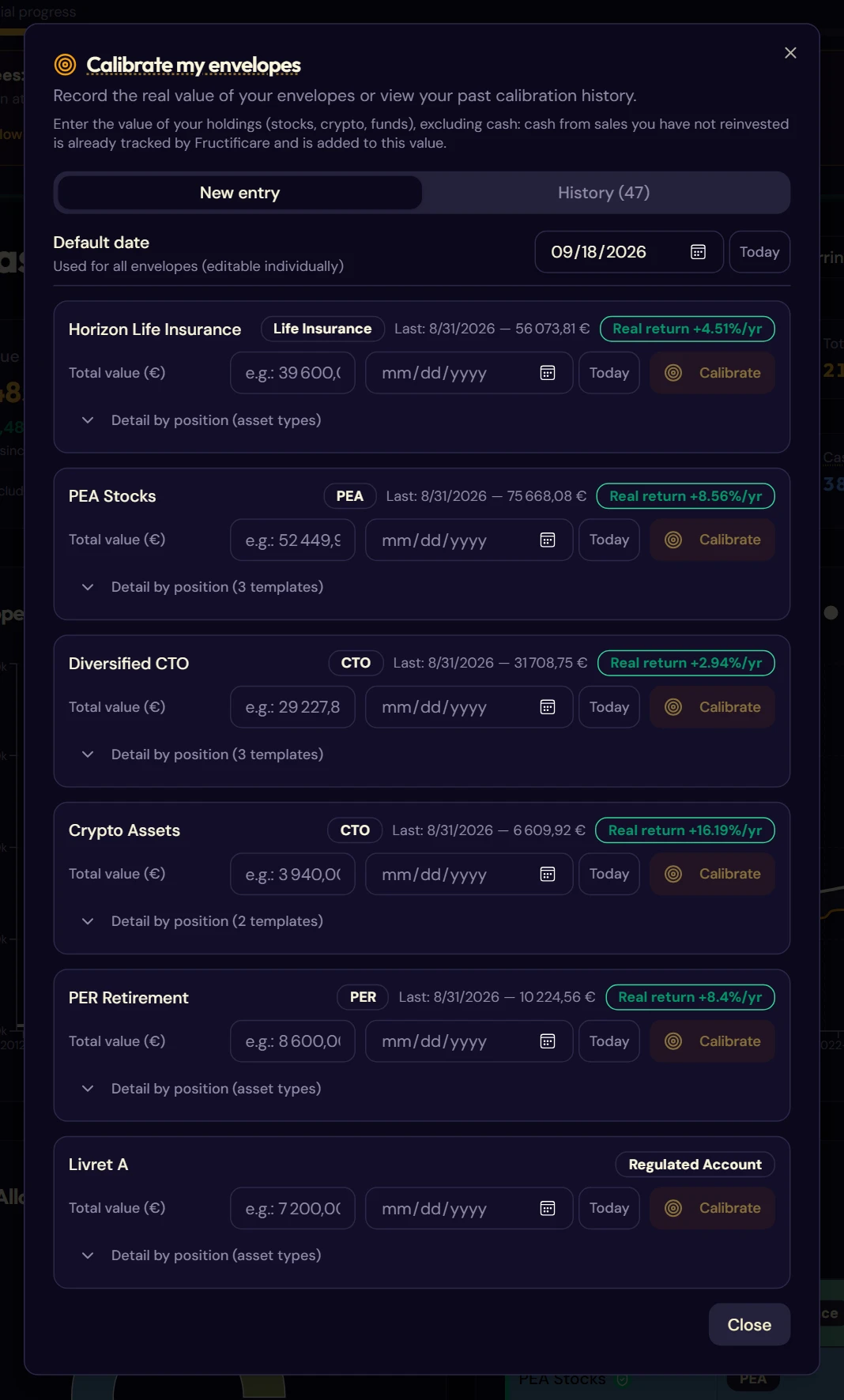
- Check the default date, at the top of the window. It applies to all envelopes.
- For each envelope, enter its total value as read on your account.
- If needed, change the date for that envelope alone in the field on the right: your statements do not all arrive on the same day.
- Click the Calibrate button on the row. The message “Calibration saved” confirms it has been recorded.
- Repeat for the other envelopes, then close the window.
Below each row, the last calibration known is shown with its date and amount, along with an annualized real return badge. They help you spot an aberrant entry quickly.
6.3Detail by position
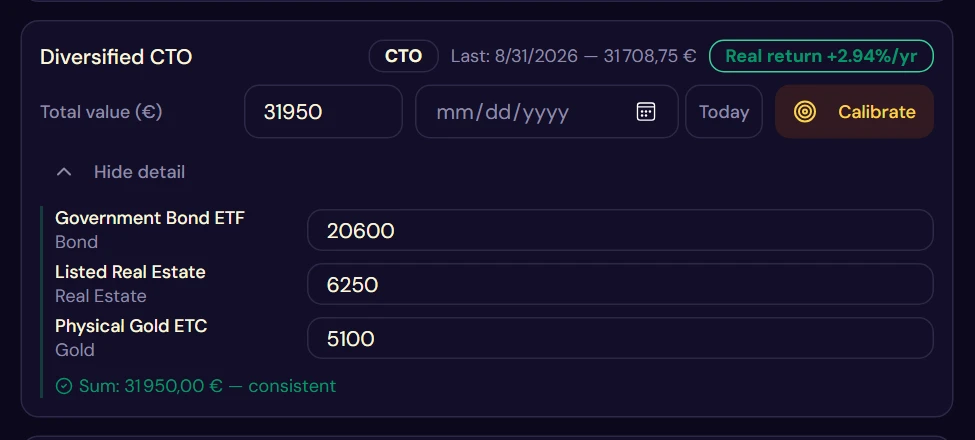
Below the total value field, a Detail by position link opens the breakdown. Instead of a single figure, you split the value between your holdings.
Fructificare offers two ways of splitting, depending on what you have entered:
- by movement template: if you have created some for this envelope (chapter 7), each one becomes a position to value, with a reminder of the number of units held;
- by asset type: otherwise, one row per asset class present in the envelope.
A consistency check verifies live that the sum of the positions equals the total. Until it does, an amber warning shows you the gap.
Level 1 or level 2?
| Level 1: total value | Level 2: detailed | |
|---|---|---|
| Time to enter | One row | One row per position |
| Portfolio value | Yes | Yes |
| Curves and returns | Yes | Yes |
| Tax estimate | Yes | Yes |
| Returns by asset | No | Yes |
| Cost price per holding | No | Yes |
In short: level 1 is enough to manage your wealth as a whole. Level 2 is needed as soon as you want to know which of your holdings is pulling performance up or down.
6.4Calibration history
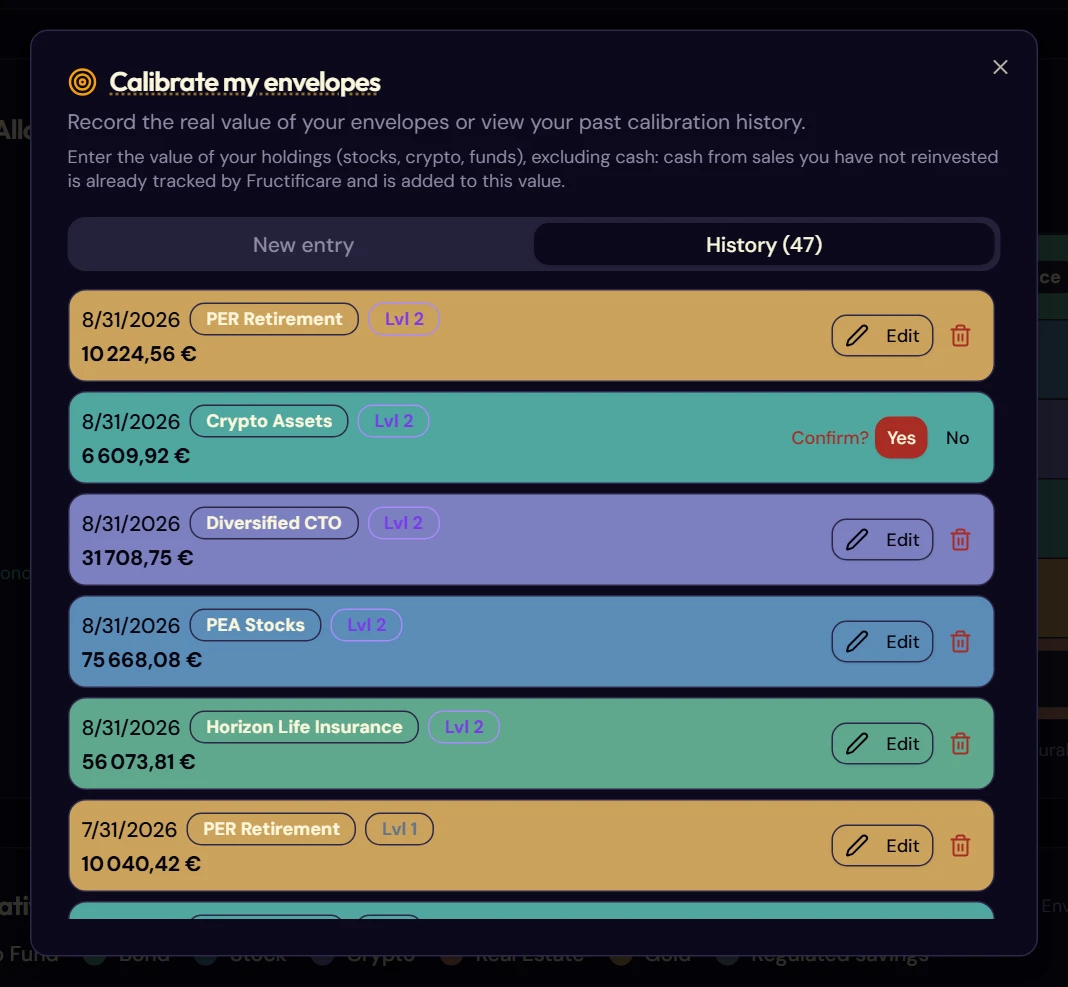
The second tab, History, lists all your calibrations, most recent first. Each row takes the color of its envelope.
A badge shows the level of detail:
- Lvl 1: total value only;
- Lvl 2: broken down by position.
Two icons end each row. The pencil lets you edit the row. The bin deletes the calibration, after a confirmation.
6.5Calibrating a single envelope
From an envelope page, the Calibrate button, next to the “Annual return” title (§ 5.7), opens the same window, but focused: only the current envelope can be edited, the others appear grayed out. This avoids typing into the wrong row when you manage a dozen accounts.