Chapter 12
Documents
File statements, trade confirmations and IFU forms with their envelopes.
2 min read, 4 sections
On this page
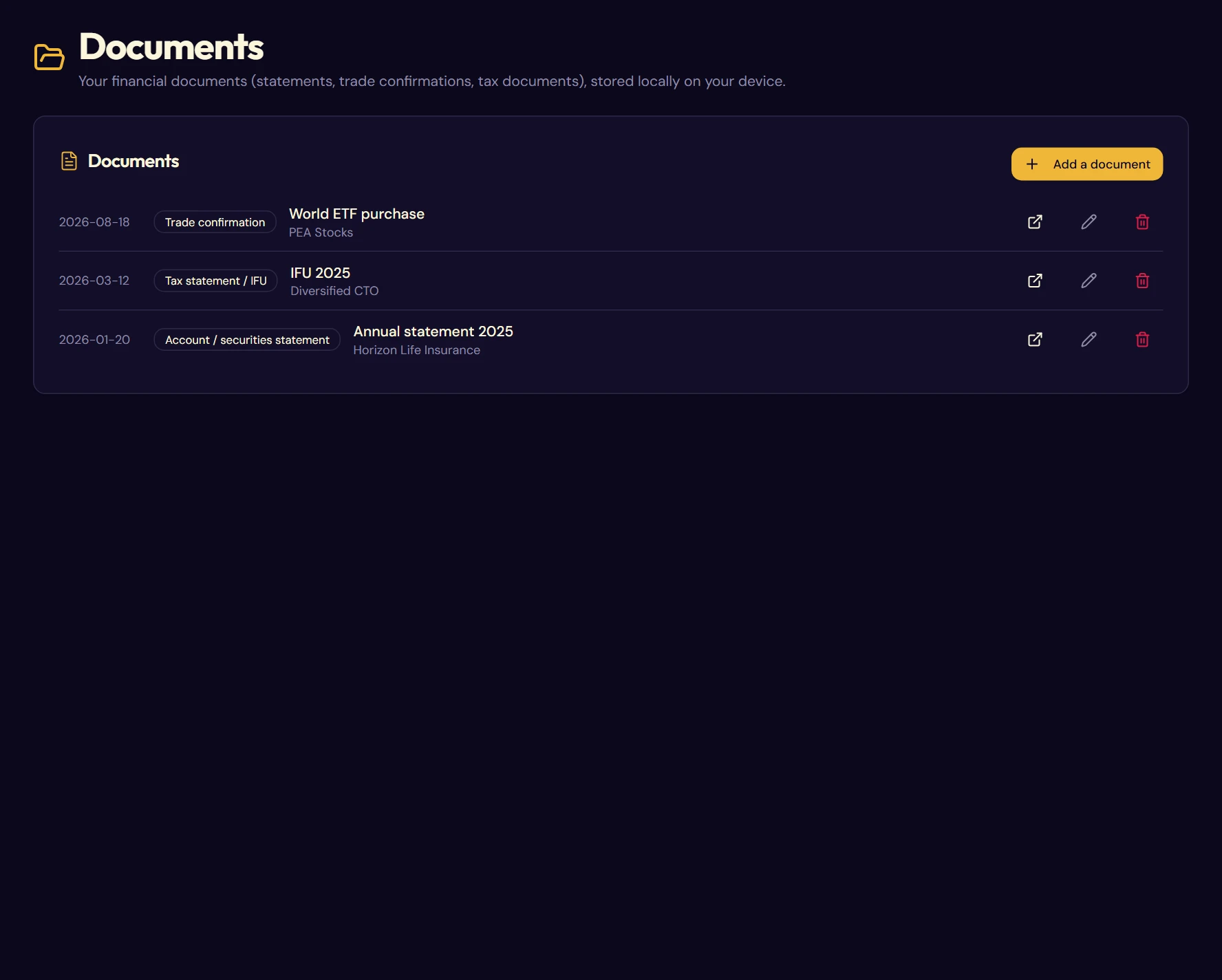
An account statement, a trade confirmation, an IFU tax form: these PDF files usually end up scattered between the downloads folder, email attachments and a forgotten folder. Fructificare lets you file them with the envelopes they relate to, so you can find them on the day you need them: when filing your tax return, or when calibrating.
12.1Where your imported documents go
Like the rest of Fructificare, these files stay stored locally. On import, the PDF is copied into a folder of the application:
%APPDATA%\app.fructificare.desktop\documents imp\
Each envelope gets its own subfolder there; documents not attached to an envelope go into a “global” subfolder.
12.2Adding a document
- From the Documents page, or from the Documents section of an envelope page, click Add a document.
- Choose a PDF. The file picker only offers this format.
- Fill in the record, then confirm. The file is copied and the record appears in the list.
The record fields
| Field | What it is for |
|---|---|
| Date | The date of the document: not the import date. It is used for sorting. |
| Document type | Account / securities statement · Trade confirmation · Tax statement / IFU · Annual report / KID · Other |
| Type label | Only appears if you chose “Other”. Lets you name your own category, for example “Tax certificate”. |
| Name | The label shown in the list. Pre-filled with the file name, editable. |
| Linked envelope | The envelope concerned, or “None” for a global document. |
12.3Viewing, editing, deleting
Each row of the list has three buttons.
- Open: the PDF opens in your usual reader (Acrobat, Edge, Preview…).
- Edit: to change the information entered when the document was imported.
- Delete: removes the record and erases the copied file, after confirmation. Your original PDF is not touched.
A Folder button opens the imported documents folder directly in Windows Explorer, if you prefer to access it by hand.
“File not found”
This orange badge marks a record whose PDF has disappeared from the application's folder: deleted by hand, or not copied over when changing computers. The record stays, so you know what is missing; simply delete it and import the document again.
12.4Two security points
Opening a document means asking Windows to launch a program. Fructificare therefore frames this operation in two ways, invisible in everyday use but which explain some refusals.
- Paths are checked. A document whose saved location does not exactly match the expected form is refused, with the message “This document points to an invalid location and was not opened”. This check protects you from a modified JSON backup that would try to open an arbitrary file on your disk.
- Disk access is restricted. The application can only read and write in its own folders. A PDF located elsewhere is only accessible at the moment you point to it in the dialog box, and for that one time only.