Chapter 1
Getting started
Install the app, learn its vocabulary and follow the tutorial.
4 min read, 7 sections
On this page
1.1What is Fructificare?
Fructificare tracks your wealth as a private investor: what you pay in, what it is worth today, what it costs you in fees, and the tax that may apply on the day you withdraw.
The application connects to no bank and sends nothing over the Internet. It runs locally on your computer, and your data stays in a file you control. In return, you enter the value of your accounts yourself: this is called calibrating, and it is the core action of the software (chapter 6).
What Fructificare does:
- track several envelopes (PEA, CTO, life insurance, PER, savings accounts...) and their assets;
- calculate your real returns, your cumulative fees and your unrealized gain;
- project your wealth into the future, with inflation and crisis scenarios;
- estimate your taxes and produce an annual tax report as a PDF;
- help you keep the pace: reminders, goals, trophies.
What Fructificare does not do:
- fetch the balance of your accounts automatically (calibrating is up to you, see chapter 6);
- place orders or recommend an investment;
- replace a wealth management adviser.
1.2Installing Fructificare
Fructificare is a standard Windows application: a single file to download, no prerequisite to install, no command line.
Windows
- Download
Fructificare_x64-setup.exefrom the project's releases page. - Double-click the installer. It installs for your user account only: no administrator password is required.
- Launch Fructificare from the Start menu.
macOS and Linux
No packaged version is distributed for now. Since the code is open, these platforms can be built from source (see dev/README.md in the repository).
1.3Launching the application
Open Fructificare from the Start menu, like any other program.
To quit, close the window, or use File → Quit. Your changes are saved automatically.
1.4Your data belongs to you
Everything you enter (envelopes, movements, calibrations, simulations, goals) fits in a single JSON file, on your disk. No copy is sent anywhere else.
Direct consequence: if you lose this file, you lose everything. Chapter 14 explains how backups work and how to restore an earlier version.
1.5The first launch
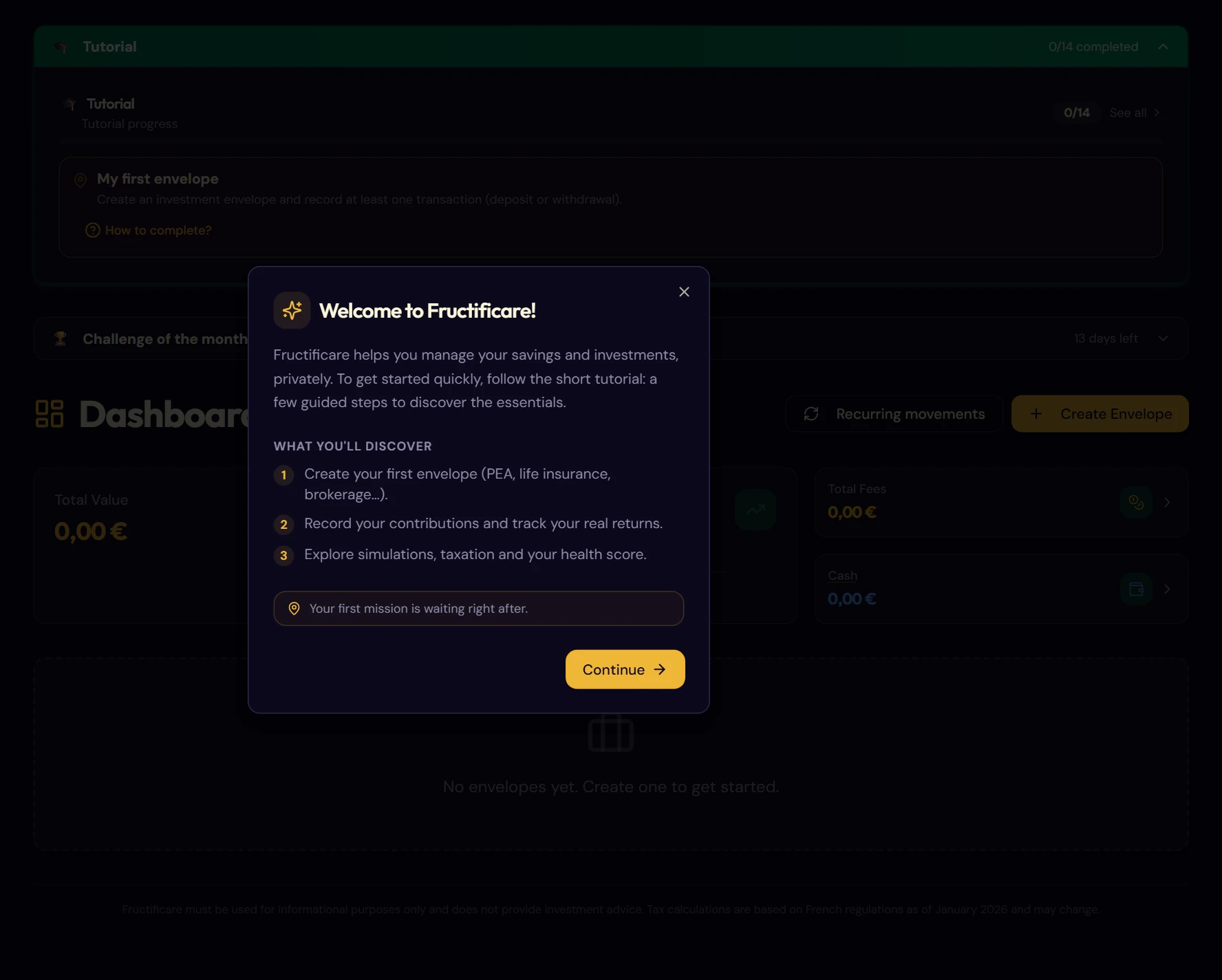
On the very first start, Fructificare welcomes you and offers its built-in tutorial. Click “Continue”: the window will not appear again.
1.6Fructificare vocabulary
Seven words come up all the time. Learning them now will save you going back and forth.
Portfolio
All of your envelopes. It is the total, the view from above.
Envelope
An investment account: a PEA, a life insurance contract, a securities account (CTO), a savings account. Each envelope has its own type, taxation, fees and color.
Movement
A deposit or a withdrawal on an envelope, on a given date. It is the basic unit of data entry.
Calibration
The real value of an envelope on a given date, read from your bank statement and entered by hand. Without calibration, Fructificare only knows your deposits and can calculate neither performance nor gains.
Movement template
A reusable entry template that remembers the envelope, the asset type and the usual fees of an investment. It never triggers anything on its own (chapter 7).
Recurring movement
A scheduled deposit or withdrawal that is recorded automatically on each due date (chapter 8).
Cash
The liquidity pocket of an envelope: money that is in the account but not yet invested, typically after a sale when you choose to keep the money in the envelope until your next purchase.
1.7Letting the tutorial guide you
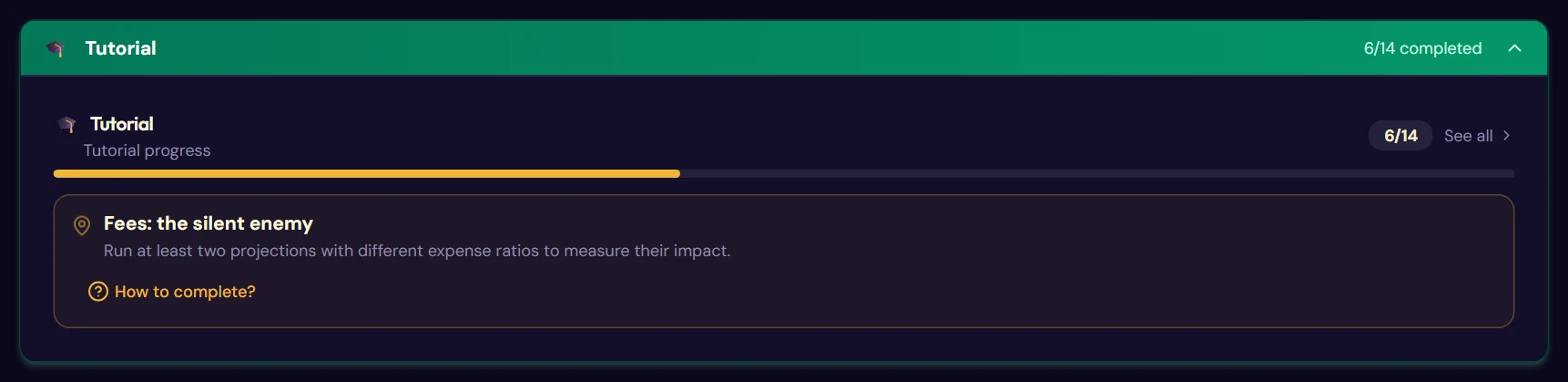
Fructificare includes a path of fourteen missions that covers most of the features. It appears at the top of the dashboard and moves forward on its own as you use the application: you have nothing to confirm.
Each mission unlocks a trophy. The banner disappears by itself once all fourteen are done, and you will find them on the Trophies page (chapter 13).
The fourteen-mission path
| # | Mission | What it introduces | See § |
|---|---|---|---|
| Q1 | My first envelope | Create an envelope and record a movement | 4.3, 5.4 |
| Q2 | Building the foundation | Spread over several asset types | 5.4 |
| Q3 | Getting acquainted | Complete your profile | 14.1 |
| Q4 | Fee awareness | Deposit fees and annual fees | 5.4, 4.4 |
| Q5 | The regular investor | Schedule a recurring deposit | 8 |
| Q6 | Looking into the future | Run a first simulation | 10.2 |
| Q7 | Fees: the silent enemy | Two simulations, two fee levels | 10.3 |
| Q8 | Surviving the crash | Apply a stress test | 10.3 |
| Q9 | Understanding taxes | Use the tax simulator | 11.1 |
| Q10 | Calibrate an envelope | Enter your first real value | 6 |
| Q11 | Your tax report | Generate the annual report | 11.2 |
| Q12 | Setting the course | Set a figure-based goal | 13.3 |
| Q13 | Budget pilot | Fill in the budget tab | 9.5 |
| Q14 | The right diagnosis | Get your health score | 13.2 |