Chapter 3
The general interface
The sidebar, the global commands and the small-screen layout.
3 min read, 4 sections
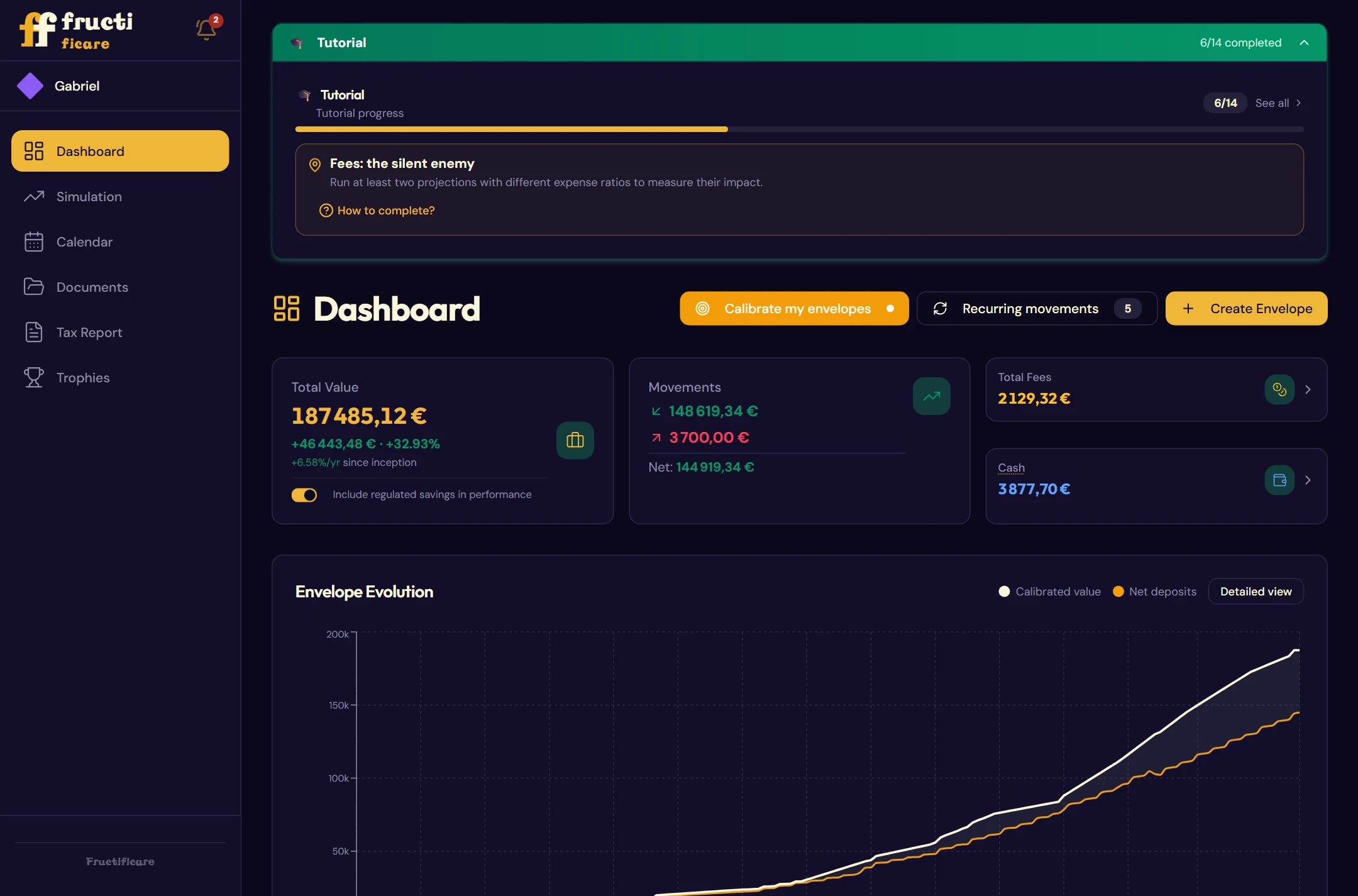
All the pages of Fructificare share the same frame: a sidebar on the left with the content displayed on the right.
3.1The sidebar
The logo
A click takes you back to the dashboard, from any screen.
Your profile
An avatar and your nickname. A click opens the Trophies page.
The avatar reflects your total capital. It takes you on an epic journey, from your first steps to the stars, and turns gold, with a thin ring, beyond one million (§ 13.1).
Navigation
- Dashboard: the overall view of your wealth (chapter 4).
- Simulation: projections and scenarios (chapter 10).
- Calendar: due dates, reminders and budget (chapter 9).
- Documents: your statements and trade confirmations as PDF files (chapter 12).
- Tax Report: tax return and PDF export (chapter 11).
- Trophies: progress, health score, goals (chapter 13).
The menu at the top of the window
The glossary and the settings are not in the sidebar: they open from the window menu, Edit > Glossary (chapter 15) and File > Settings (chapter 14). This menu also groups saving, display and help (§ 16.6).
3.2Global commands
Language
The View › Languages menu offers Français or English and switches the whole interface, fully translated into French or English. The window menu and this manual follow the chosen language.
Light or dark theme
The View › Themes menu offers the Dark theme or the Light theme. Your choice is saved in your backup file: you will find it again on another computer after importing it.
Notifications
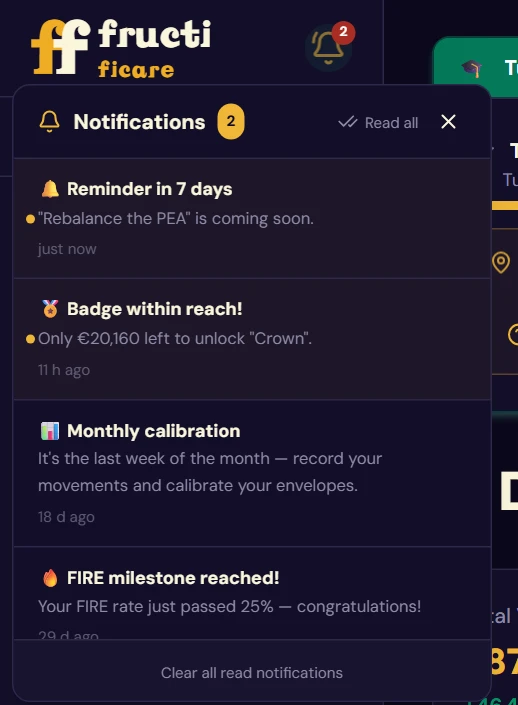
The bell shows the number of unread messages. The panel lets you mark a notification as read, mark them all as read, delete a notification, or jump straight to the related page.
Fructificare notifies you of the tip of the day, a trophy within reach, a goal close to its target, a FIRE milestone reached, a tax deadline or a login streak about to be lost. The pace is capped at two progress notifications per day.
3.3Display on a small screen
Below a certain width, the sidebar folds away. A menu button appears at the top left, the logo shrinks to its icon, and the notification bell moves up into the header.
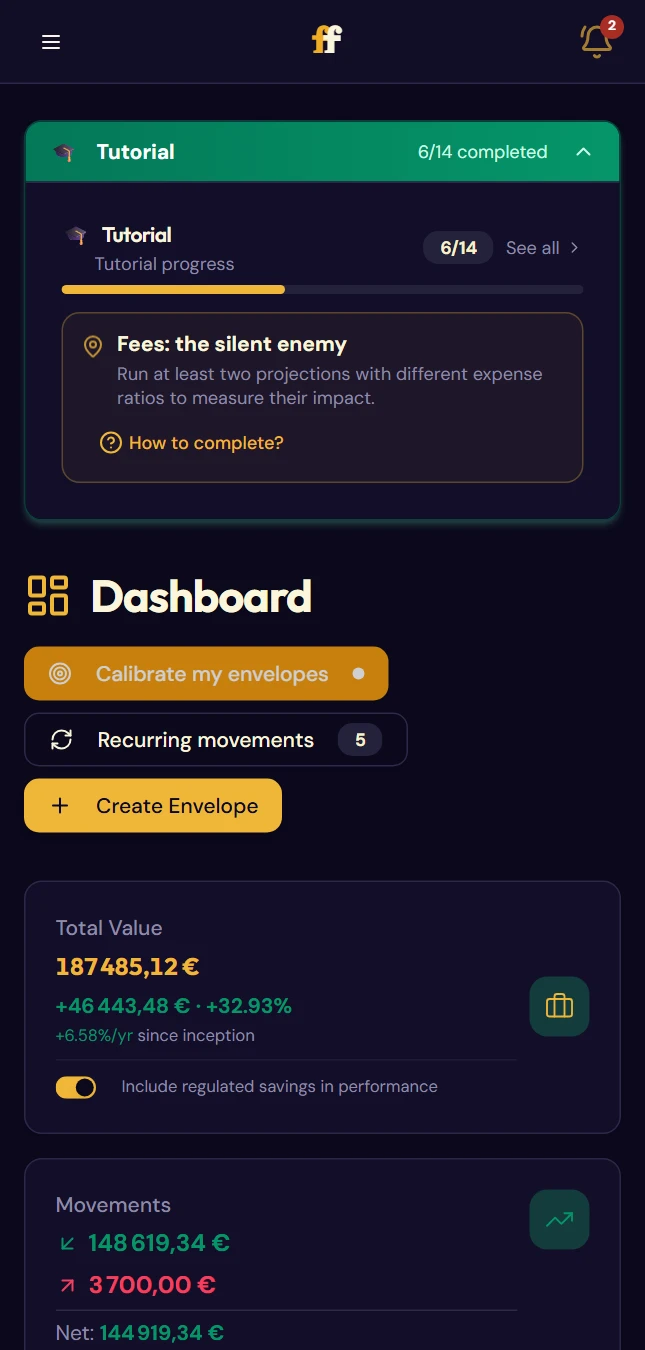
Menu closed
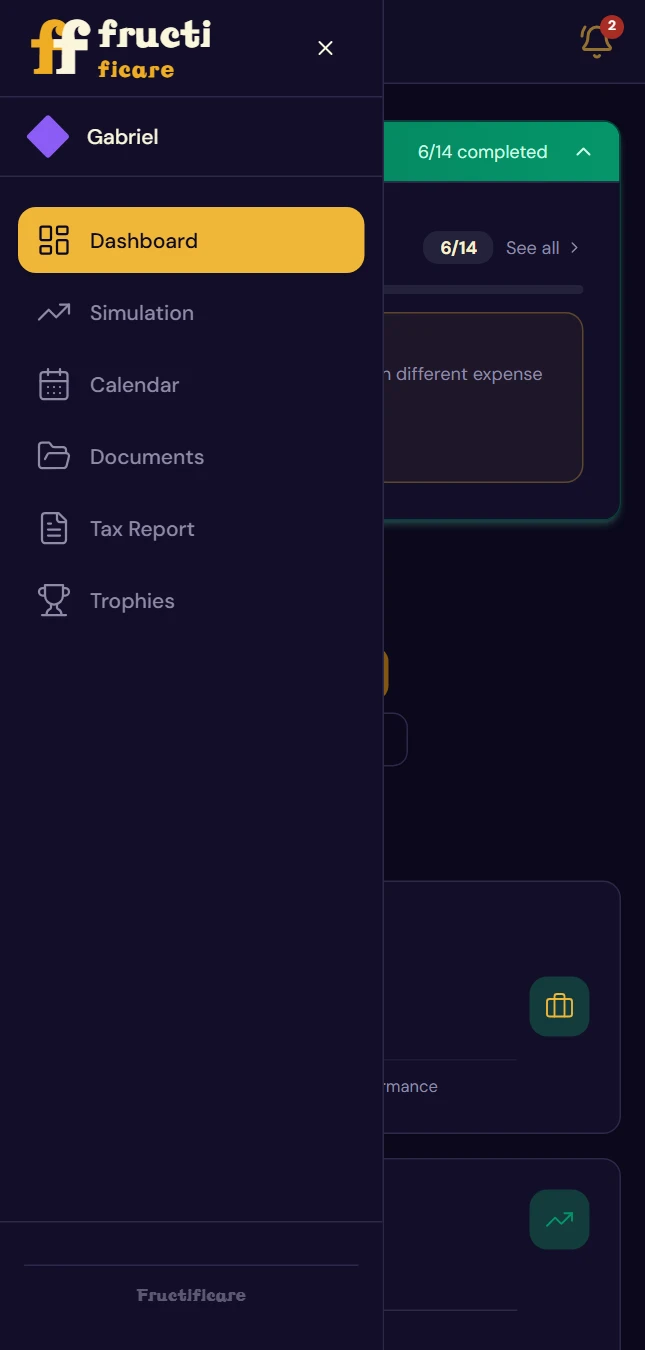
Menu open
3.4Catching up at startup
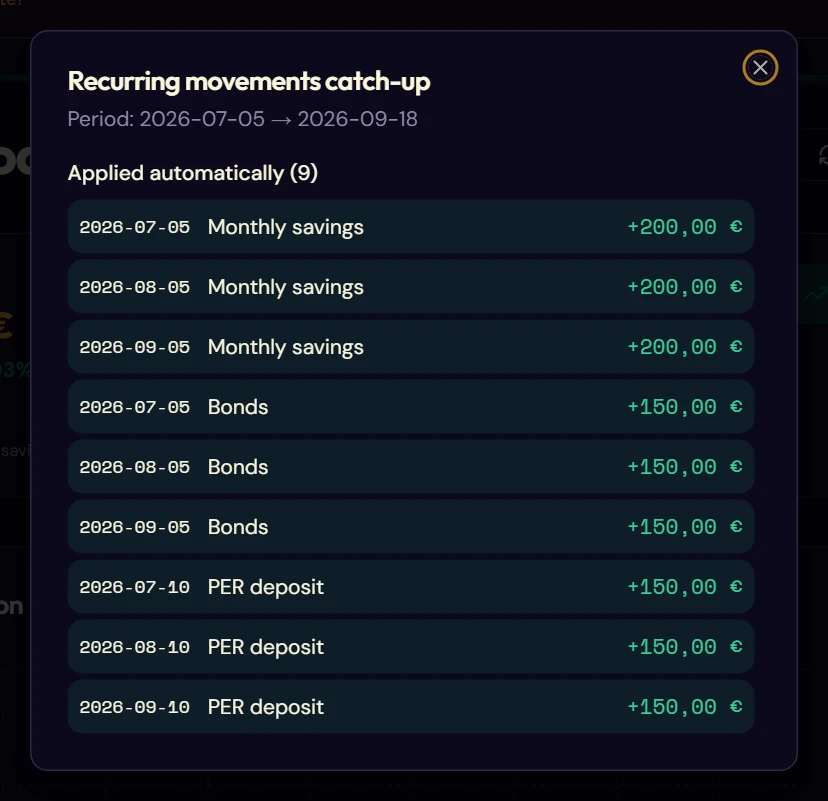
Your recurring movements (chapter 8) keep applying even when the application is closed. At each launch, Fructificare catches up on the due dates missed since your last session and applies them.
A message appears at the top right. Click View details to open the full summary:
- the movements applied automatically, with their date and amount;
- the occurrences carried over into your simulations.