Chapter 5
The envelope page
Record your movements, handle withdrawals and follow each asset.
8 min read, 11 sections
On this page
A click on a row of the dashboard opens an envelope's page. This is where most of the work happens: entering movements, reading performance, understanding where the fees come from.
5.1The header
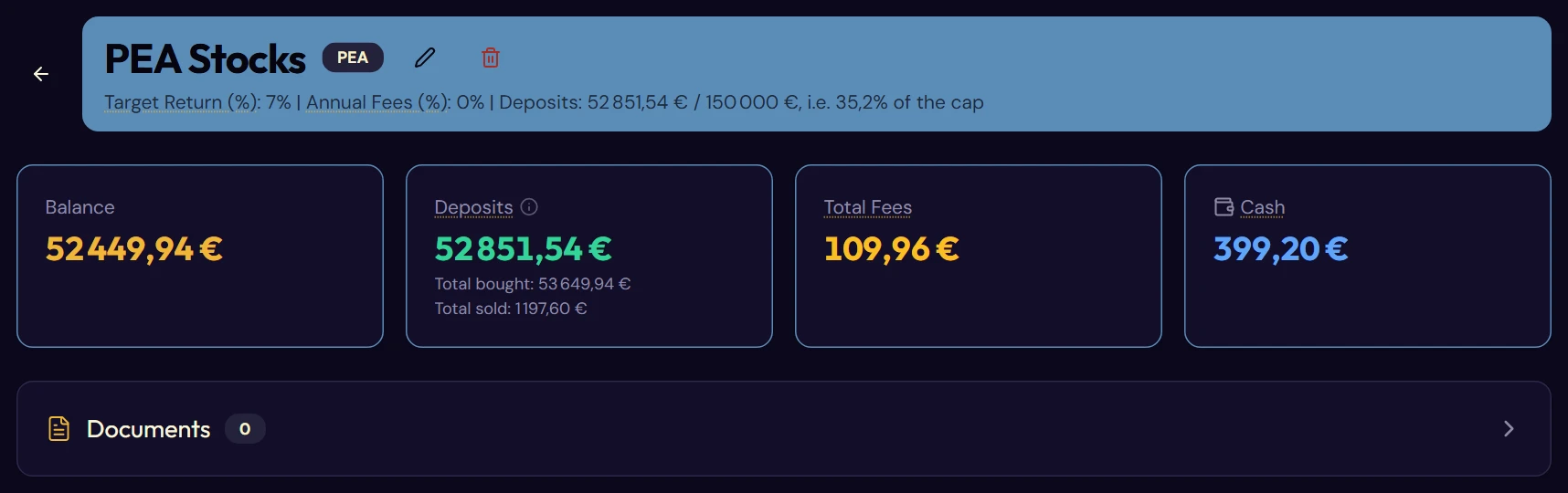
A banner in the envelope's color, with its name and type.
Two icons to the right of the name: the pencil to edit the envelope, the bin to delete it (§ 5.11).
Below the name, a reminder line shows the target return and the annual fees.
For a PEA, this line also tracks the €150,000 deposit cap: the total already paid in, the cap, and the share used: for example “Deposits: €75,000.00 / €150,000, i.e. 50% of the cap”. Only money brought in from outside counts, fees included: a purchase paid with the envelope's cash uses up none of the cap, and a withdrawal frees none. A deposit that would exceed the cap is refused, with the amount still available.
5.2The four tiles
| Tile | What it shows |
|---|---|
| Returns | Current value, total cost and gain, in euros and as a percentage |
| Deposits | The net capital in place, with the total bought and the total sold below it |
| Total Fees | Sum of movement fees and annual fees |
| Cash | Cash available in the envelope |
The first tile only shows the Returns once a calibration exists. Without one, it only shows the simple balance of the deposits.
5.3The envelope's documents
Below the tiles, a Documents box shows the number of PDF files attached to the envelope: account statements, trade confirmations, IFU tax forms. A click opens the list of these documents: you can add one, open it, edit its record or delete it, without leaving the envelope page.
A document added here is automatically linked to the envelope. It also appears on the Documents page, which gathers all your documents and where the import is described in detail (chapter 12).
5.4Adding a movement
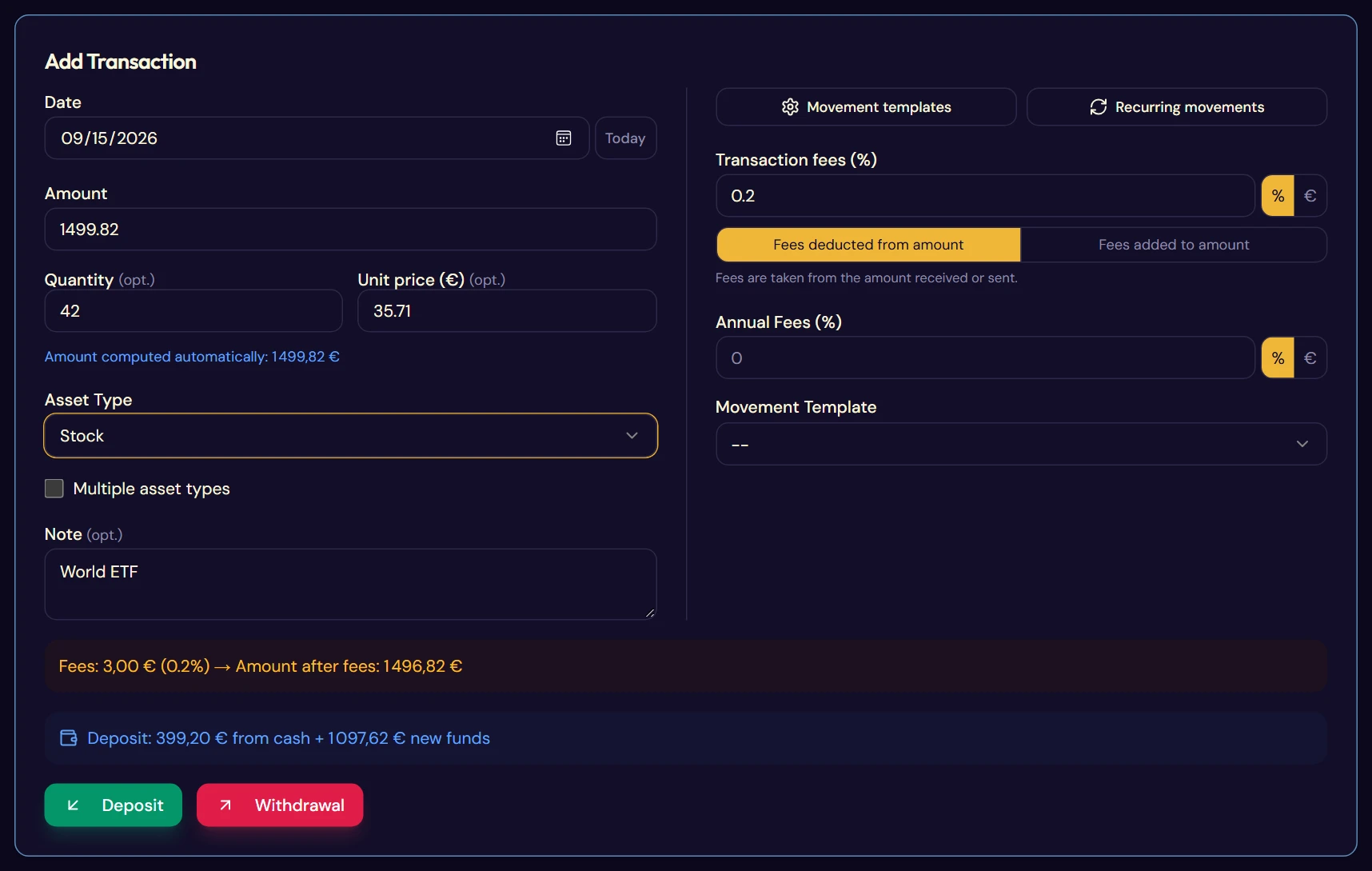
The form takes up the top of the page. It is used for deposits and withdrawals alike: the final button decides.
- Choose the date. It cannot be earlier than the contract start date, nor later than today.
- Enter the gross amount.
- Enter the transaction fees charged by your broker, as a percentage or in euros.
- Add the annual fees specific to this line, if it has any.
- Select the asset type.
- Optionally fill in the note, the quantity and the unit price.
- Click Deposit for a deposit or Withdrawal for a withdrawal.
Asset types
Ten categories are offered: euro fund, bond, stock, ETF, crypto, real estate, SCPI, gold, exotic, and “other”. The same list appears in every form: movement, movement template, recurring movement and multi-asset breakdown.
Choosing other shows a free-text field. The name you type there becomes a reusable custom asset type: it will appear in the list the next time you enter a movement.
One movement, several assets
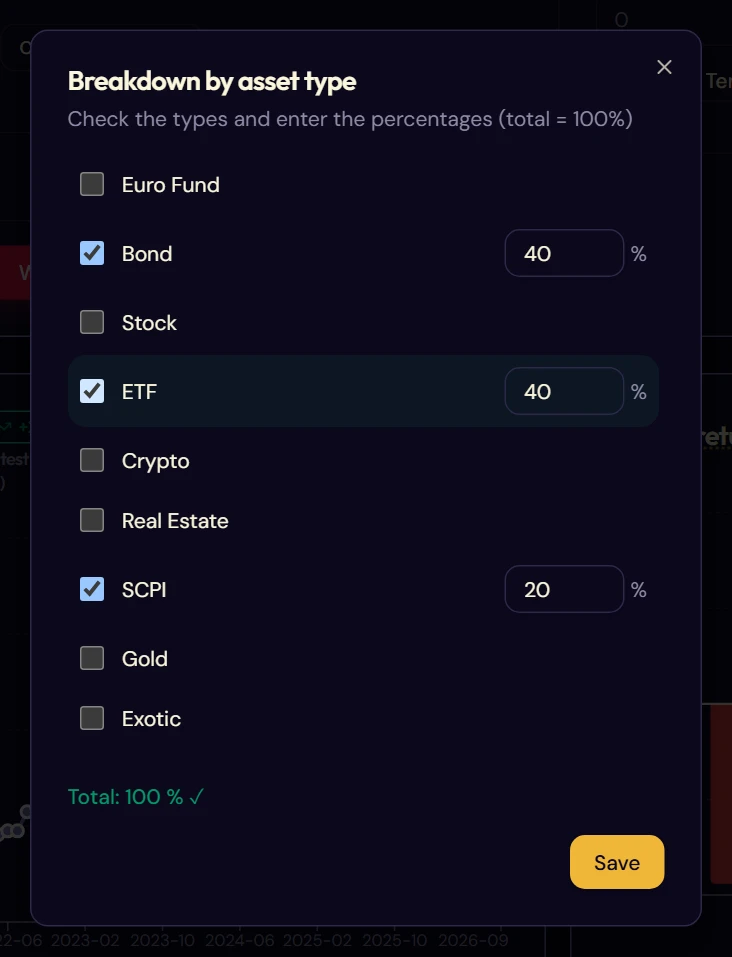
A deposit into a life insurance contract is rarely split over a single fund. Tick Multiple asset types, then Configure to break the amount down in percentages. The total must be exactly 100%; the application reminds you of it in real time.
Quantity and unit price
Two optional fields, useful for listed securities. Fill in two of them and the third is calculated: entering 10 units at €145.30 automatically fills in the amount at €1,453.
These values feed the weighted average purchase price in the “Totals by note” table (§ 5.9) and the calculation of returns by asset (§ 5.8).
The note
Fructificare groups all the movements that share the same note and calculates their totals (§ 5.9). Use it to follow a specific holding over time: the name of an ETF, an SCPI, a stock.
The previews
Two boxes appear as you type:
- the fee preview, which shows the amount charged and the net amount actually invested;
- the cash pocket preview, which shows what part of the purchase will be paid from your existing cash and what part from new money.
The two neighboring panels
At the top of the card, two buttons open independent tools:
5.5The withdrawal question
When you click Withdrawal, Fructificare asks a question before saving: where does the money go?
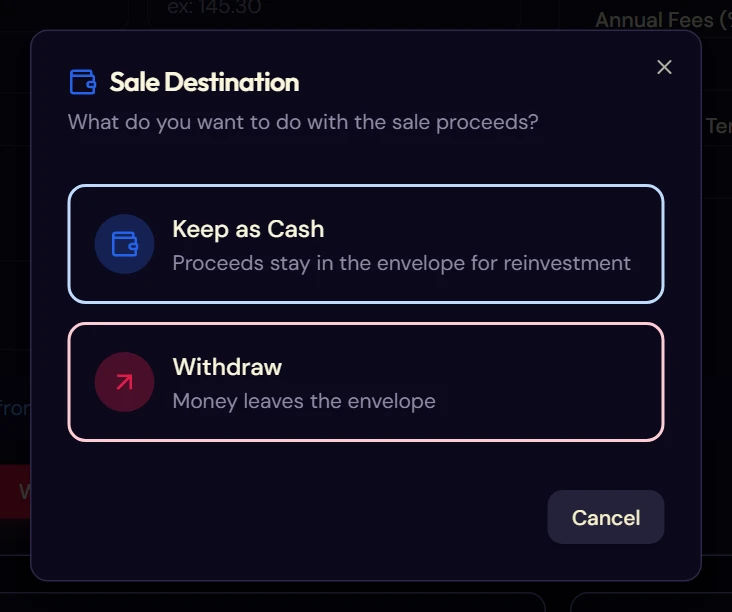
- Keep as Cash: the money stays in the envelope, available for a future purchase. It goes into the cash pocket and will be used automatically for your next deposit. This is the case of a switch: you sell one holding to buy another.
- Withdraw: the money leaves the envelope for good. It is a withdrawal (rachat), and this is often the case that triggers tax (chapter 11).
5.6The evolution curve
The central chart of the page. It overlays what you have paid in and what the envelope is really worth.
A badge shows the real return since inception, calculated using the modified Dietz method: each deposit is weighted by its date, so that a recent deposit does not distort the annualized performance.
The target return curve
Turn it on to overlay a dotted curve: the path your envelope would have followed if each deposit had actually earned the target return set when it was created. The gap between the two curves is how far you are from your goal.
The data table
The toggle button at the top right replaces the chart with a table. It lists each calibration with its cumulative gain and its return for the period. Values in italics are interpolated: they correspond to months you did not calibrate.
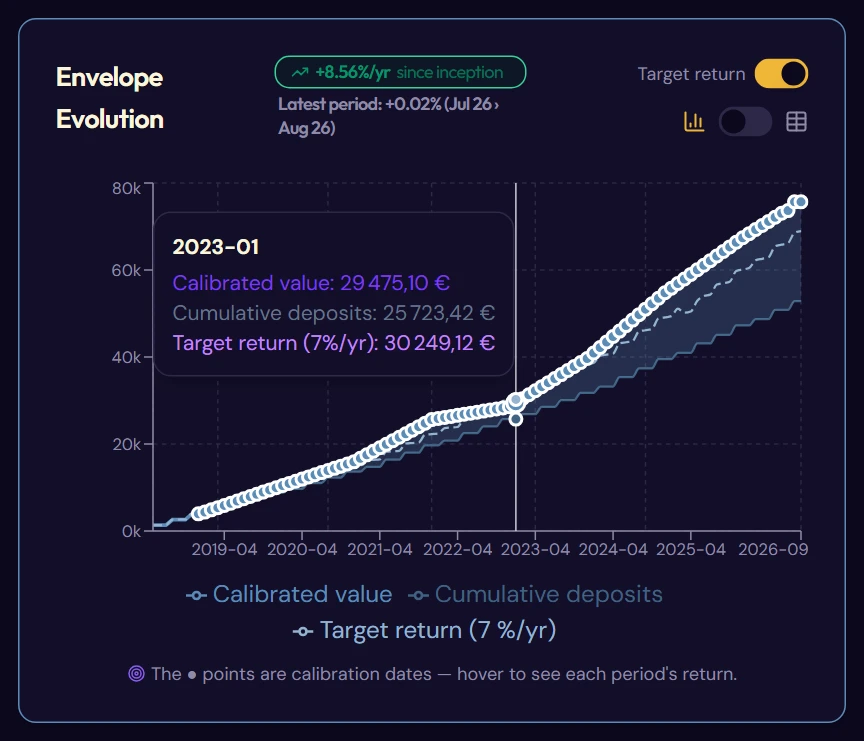
The curve with the target return and a tooltip
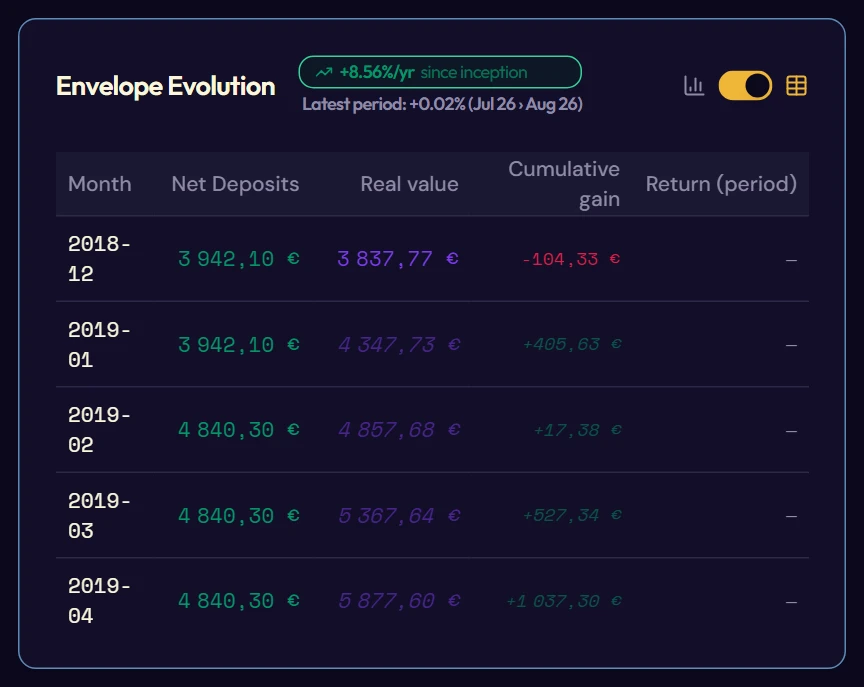
The data table
5.7The annual return
A year-by-year bar chart for this envelope only. Next to the title, a Calibrate button opens the calibration window directly, focused on the current envelope: the others appear grayed out.
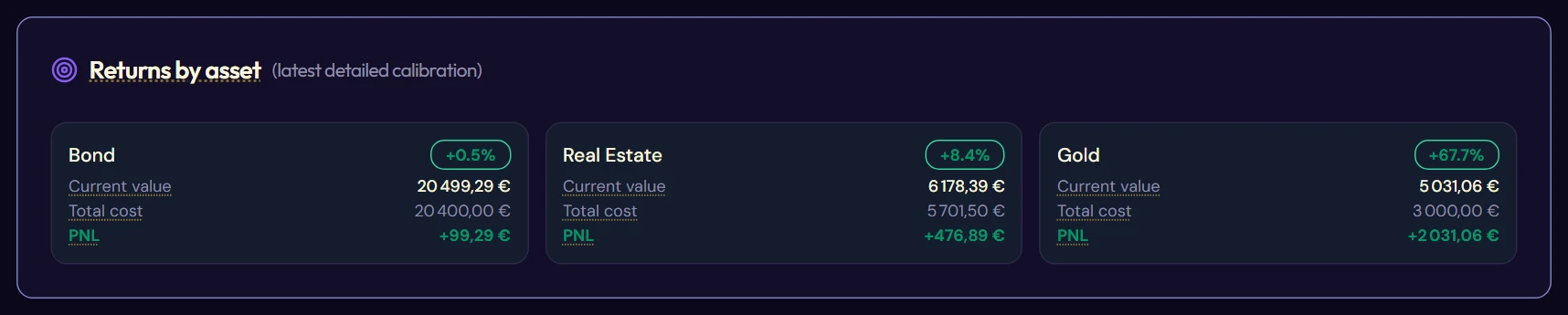
5.8Returns by asset
One tile per asset, taken from your latest detailed calibration:
- the current value of the holding;
- its total cost, that is what you have invested in it;
- its gain in euros and as a percentage.
Two warnings may appear:
- Mixed calculation: some movements of this asset have a quantity filled in, others do not. The cost basis then mixes two methods and becomes less accurate.
- Asset with no movement: you calibrated a holding to which no movement is attached. Fructificare shows its value but refuses to invent a performance.
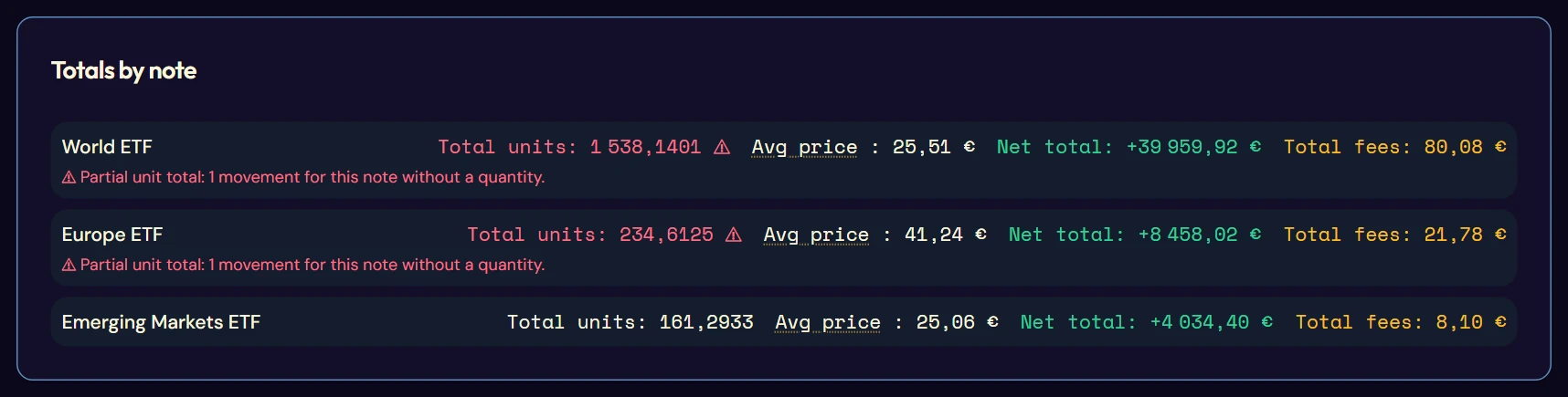
5.9Totals by note
This table groups all the movements that share the same note and summarizes them. It is the tool for following a specific holding.
| Column | What it gives |
|---|---|
| Total units | The sum of the quantities bought |
| Avg price | The weighted average purchase price |
| Net total | Deposits minus withdrawals |
| Total fees | The fees accumulated on this holding |
The weighted average purchase price only takes into account the movements that have both a quantity and a unit price. If some have neither, the total units are shown in red with a warning: the figure is partial.
5.10The movement table
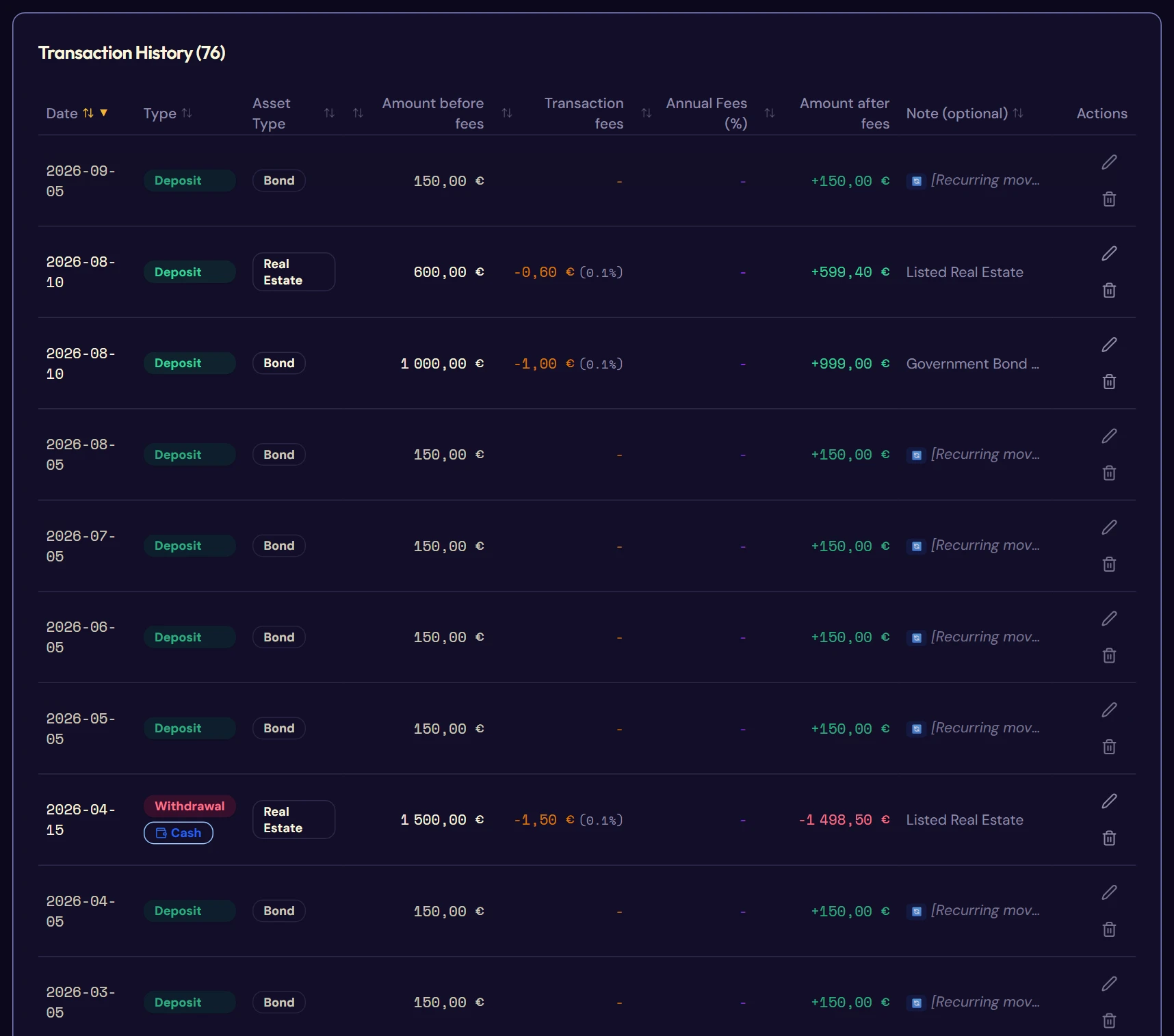
The complete history, at the bottom of the page. Each column can be sorted with a click on its header: date, type, asset type, gross amount, fees, annual fees, net amount, note.
Two markers may accompany a row:
- Cash: a withdrawal kept in the cash pocket.
- 🔄: a movement generated automatically by a recurring series (chapter 8). Its note appears in italics.
The quantity and unit price, when filled in, are shown in small type below the amount.
Each row can be edited or deleted with the icons on the right. Beyond 100 movements, the table is split into several pages.
5.11Editing or deleting the envelope
Edit
The pencil in the header opens a window where you can change the name, color, fees, target return, start date and inclusion in the tax report. Movements are not affected.
Delete
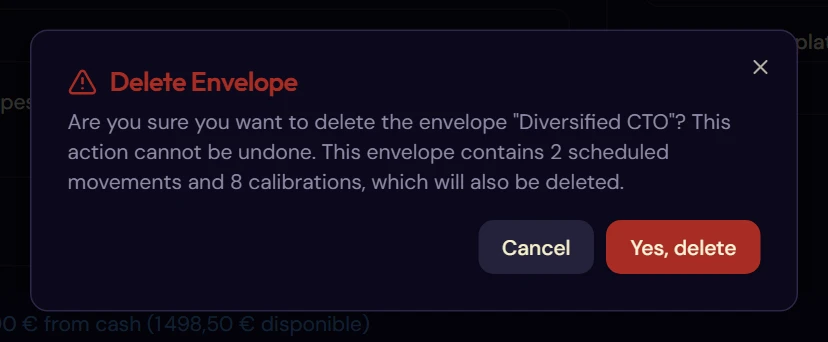
The bin asks for confirmation and tells you exactly what will go with the envelope: the number of scheduled movements and calibrations involved.