Chapter 8
Recurring movements
Schedule deposits that record themselves.
4 min read, 4 sections
A recurring movement is a scheduled deposit or withdrawal. Once created, it is recorded on its own on each due date, including the due dates that passed while the application was closed.
8.1Opening the panel
Three paths lead to the recurring movements panel:
- from the dashboard, Recurring movements button: the counter shows the number of active series;
- from an envelope page, Recurring movements button: the envelope is pre-selected;
- from the calendar, Scheduled movements tab (§ 9.4).
The panel has two tabs: creation and history.
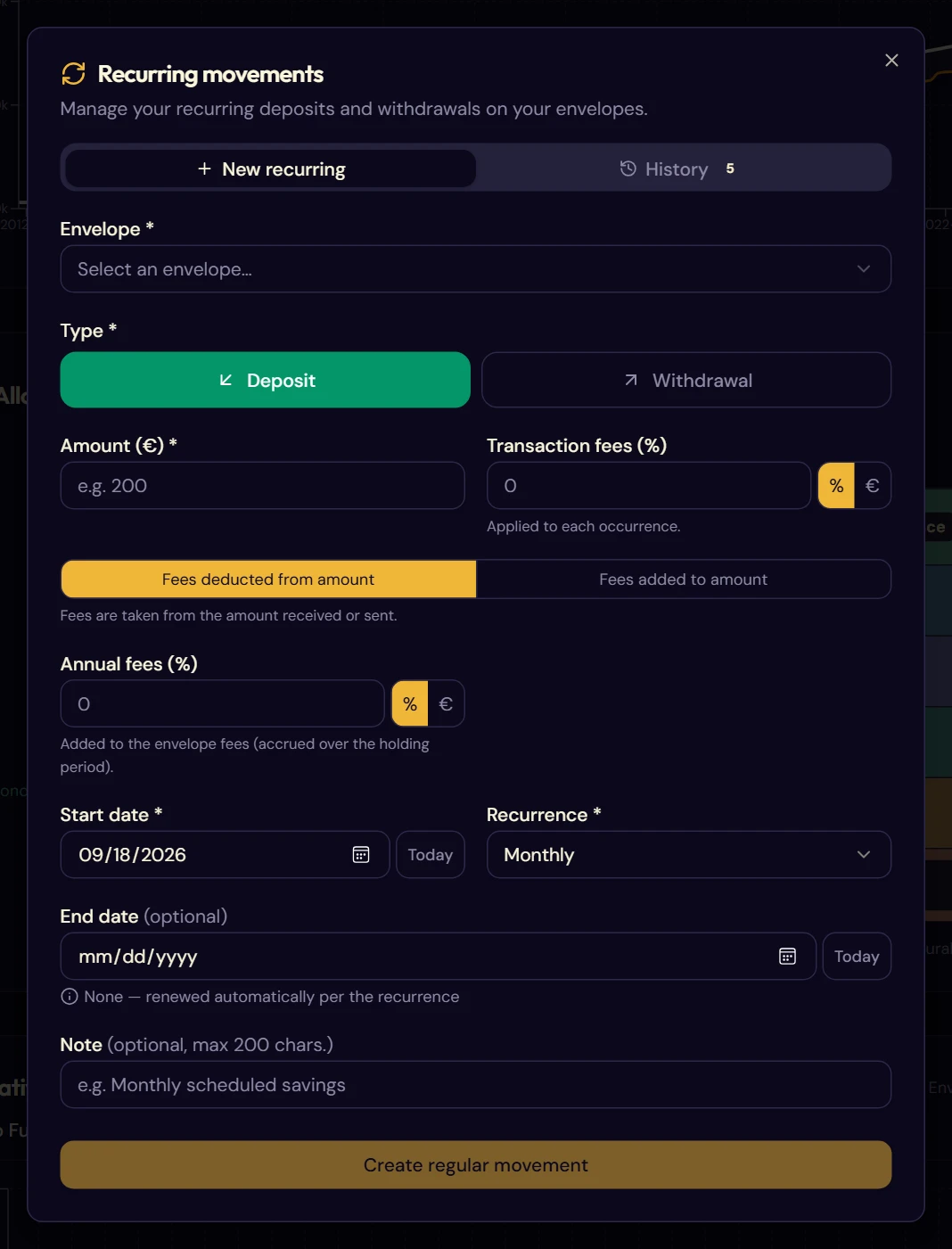
8.2Creating a series
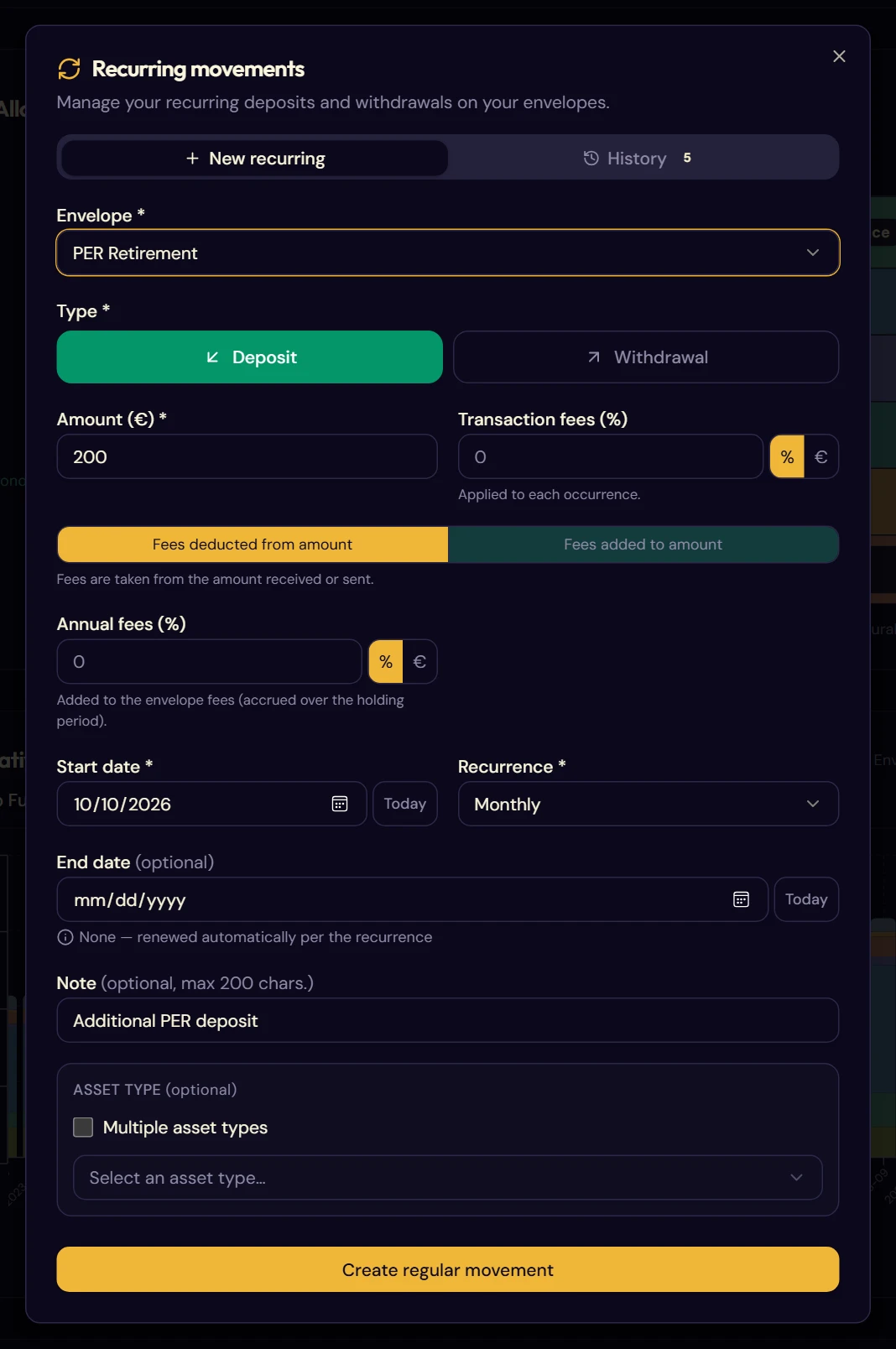
- Choose the destination envelope.
- Set the type: deposit or withdrawal.
- Enter the amount of each occurrence.
- Fill in the transaction fees, they will be charged on each due date, then any annual fees.
- Set the start date and the recurrence.
- Leave the end date empty so that the movement keeps applying by default until you stop it, or set one.
- Add a note and the asset type if needed.
- Confirm with Create regular movement.
The four recurrences
| Recurrence | Frequency | Typical use |
|---|---|---|
| Monthly | Every month | Scheduled deposit into a contract |
| Quarterly | Every 3 months | Dividends, SCPI rents |
| Semi-annual | Every 6 months | Bonus, additional deposit |
| Annual | Once a year | Year-end deposit, account-keeping fees |
Importing a movement template
If you have created templates for this envelope (chapter 7), the Import a template button takes over its asset type and fees in one go. It is the quickest way to create a series that is consistent with your manual entries.
Splitting over several assets
As with manual entry, tick Multiple asset types then Configure to break each occurrence down in percentages. The total must reach 100%.
8.3The history
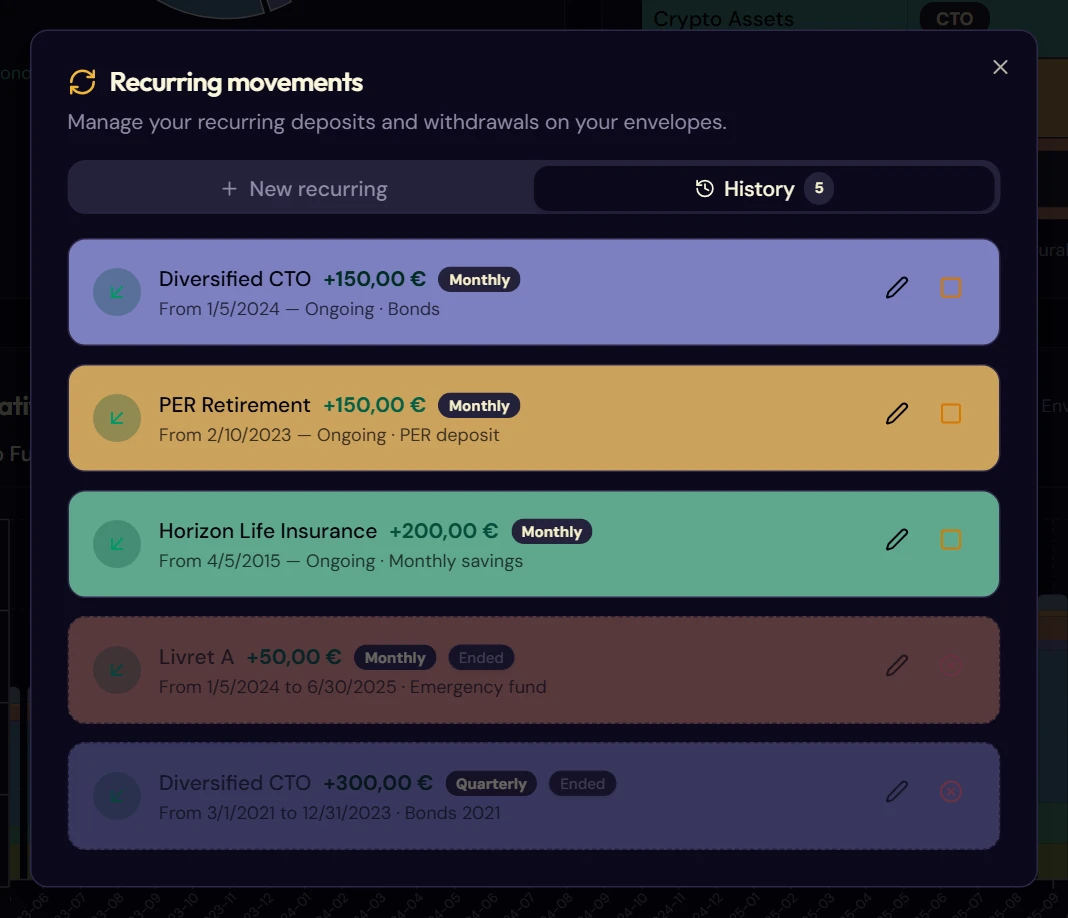
The second tab lists all your series, active and ended alike, each tinted in the color of its envelope.
Each block shows the name of the envelope, the amount, the recurrence, the period covered and the note.
An ended series (stopped manually, or whose end date has passed) stands out with a dotted border and an “Ended” badge. It keeps the tint of its envelope, so that it stays readable.
Editing a series
The pencil takes you back to the form, pre-filled. Changing the amount, start date, recurrence, type or fees applies to the whole series, past included: the movements already generated are deleted and recreated with the new settings, and the envelope's balance is recalculated. To change the amount from a given date without touching the past, stop the series and create a new one.
Every change of amount is recorded in a change log shown below the block, with its date and both values. You thus keep track of a change to a deposit.
Stopping a series
The square icon interrupts the series after confirmation. The movements already generated stay in place.
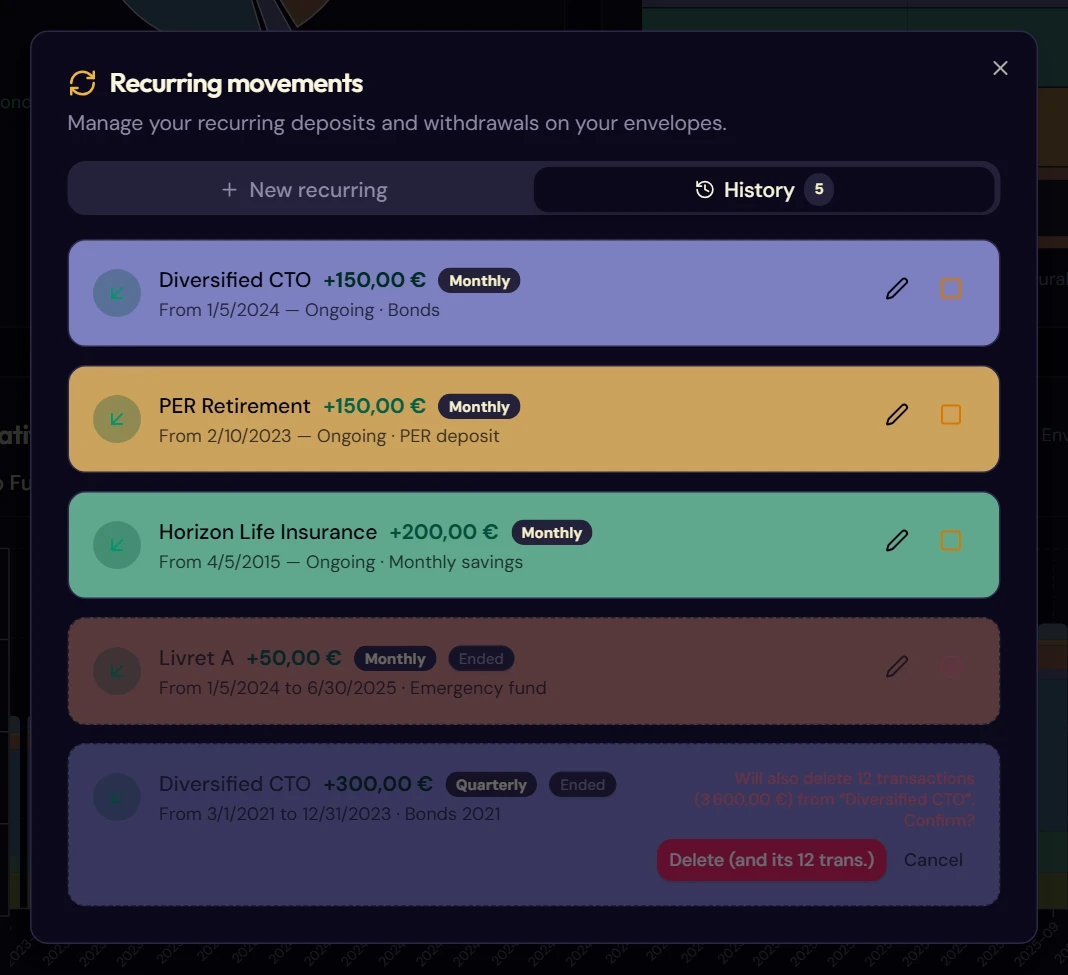
Deleting a series
Only available on a stopped series. Fructificare first tells you how many transactions this series generated and for what total amount: they will be deleted with it.
8.4Automatic catch-up
Your series keep existing when the application is closed. At each startup, Fructificare compares today's date with the last known due date and generates everything that is missing (§ 3.4).
The summary distinguishes two cases:
- applied automatically: the occurrences created without any action from you;
- carried over into simulations: the occurrences added to your scenarios.
In an envelope's movement table, an occurrence coming from a series carries the 🔄 marker and its note is shown in italics (§ 5.10).